

2.1 No-Code UI Step Builder & Composable Canvas
How to visually compose cross-browser Playwright web tests with drag-and-drop steps, visual assertions, and zero coding.
From Click-Path to Click-Path, Minus the Code
Section titled “From Click-Path to Click-Path, Minus the Code”Writing web automation by hand means writing TypeScript, wiring async/await around page navigation and network timing, and keeping a browser driver toolchain healthy before a single assertion ever runs – a real skill investment that quietly concentrates test authorship in a small automation team, while the manual QA analysts and product owners who actually know the flow being tested are left filing tickets instead of building coverage themselves. The Step Builder canvas removes that barrier without removing the engine underneath it: a case is a linear sequence of action blocks – LAUNCH a URL, CLICK an element, TYPE a value, run an ASSERTION – that reads almost exactly like the manual script it replaces, and every block still compiles down to real Playwright execution, not a simplified imitation of it.
Example: a storefront suite
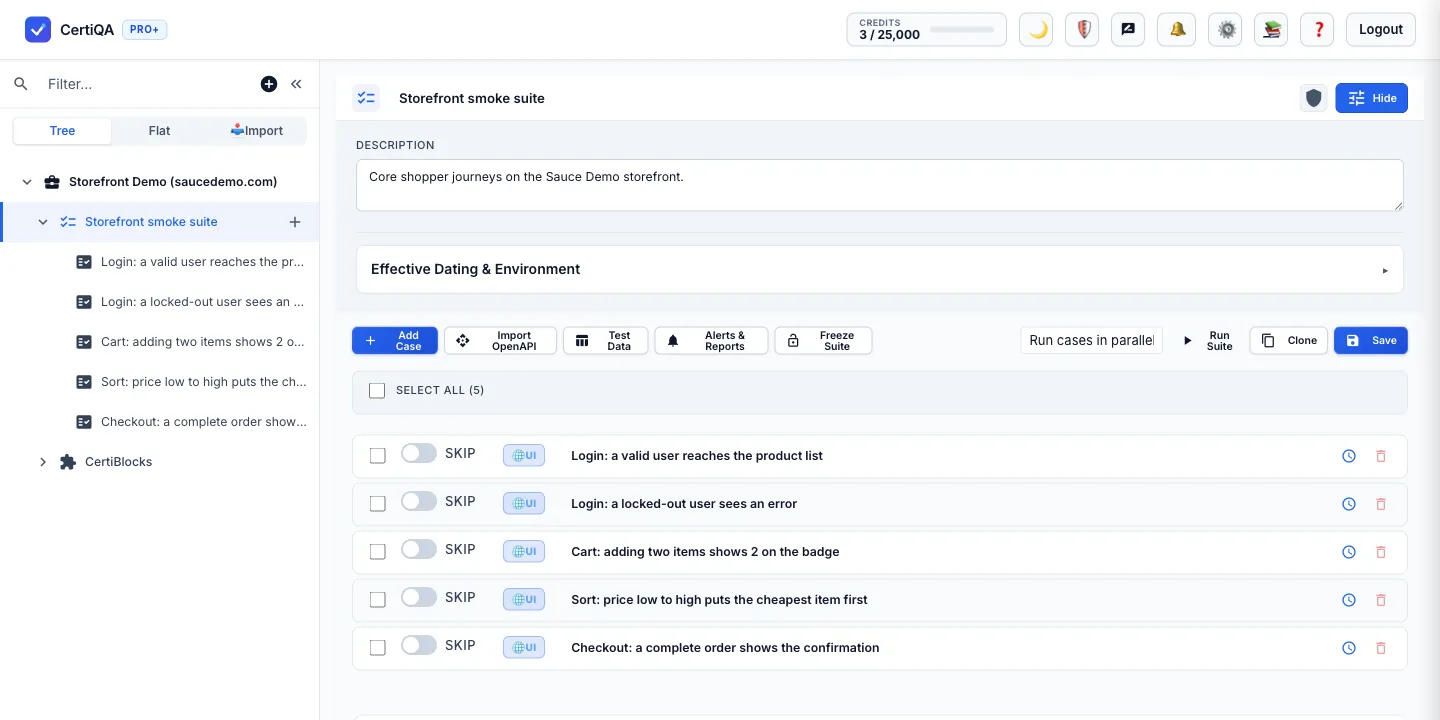
Section titled “Example: a storefront suite”This suite has five cases against the public Sauce Demo shop (saucedemo.com). An AI assistant wrote them through the CertiQA MCP server, and CertiQA validated each one before it was saved. Each case is one behaviour: login, a locked-out login, the cart badge, sorting and checkout.
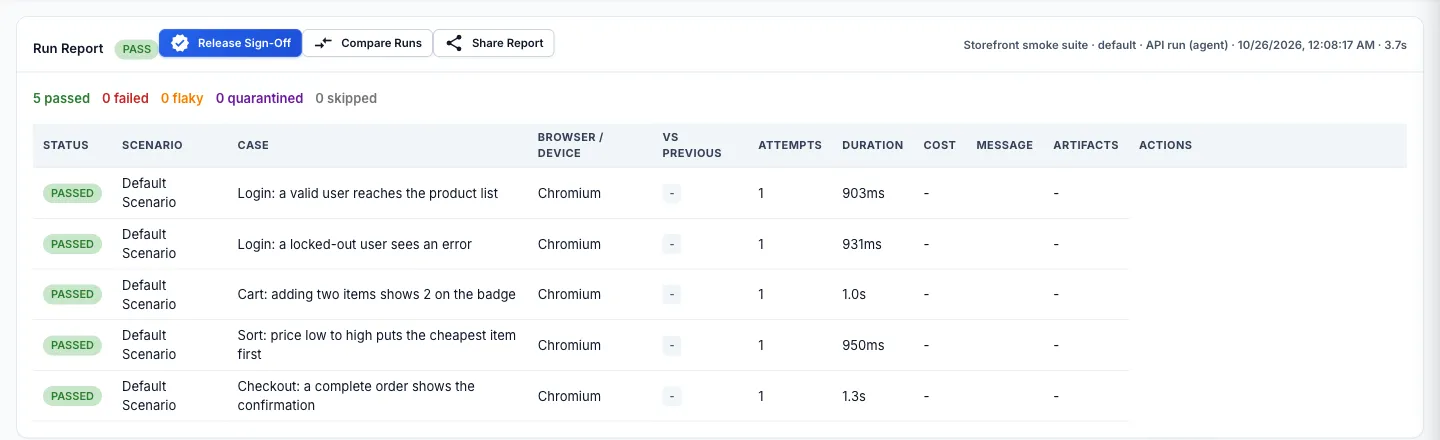
Running the suite produces a run report. It shows the release gate, the result of every case and how long each took.
What a Step Actually Is
Section titled “What a Step Actually Is”Every step on the canvas is three things: an action, a target locator, and – for TYPE/ENTER_VALUE and ASSERTION steps – a value or an expected condition. Underneath, a step compiles into the same Universal IR (Intermediate Representation) every other authoring path in CertiQA produces, whether it was typed by hand, imported from a legacy script, recorded by the Chrome extension, or generated by CertiMind. That shared representation is why a step you drag onto the canvas gets CertiHeal’s self-healing cascade for free the moment it runs – there is no separate “make this step resilient” configuration to remember.
| Category | Representative Actions | What It’s For |
|---|---|---|
| Navigation | LAUNCH | Open the suite’s target URL (or a relative path) as the first step of a case. |
| Interaction | CLICK, TYPE / ENTER_VALUE | Drive the page – click a button or link, type a value into a field. |
| Verification | ASSERTION (e.g. VISIBLE, TEXT) | Confirm the page actually reached the state you expect before the case moves on. |
| Control Flow | Conditional IF (VARIABLE_EQUALS, ELEMENT_EXISTS, STEP_STATUS) | Run a step only when a condition holds – e.g. skip a promo-banner dismissal step when no banner is present. |
Step Shortcuts
Section titled “Step Shortcuts”With a step row focused on the canvas, these Alt shortcuts act on that step without opening its action menu:
| Shortcut | What It Does |
|---|---|
| Alt+C | Clone the step |
| Alt+D | Delete the step (asks to confirm) |
| Alt+A / Alt+B | Insert a new step above / below |
| Alt+U / Alt+J | Move the step up / down |
| Alt+S | Toggle skip (turn the step off or on without deleting it) |
| Alt+I | Open the IF condition for the step |
| Alt+T | Open the temporal (date) settings for the step |
- ✨ CertiHeal™ Self-Healing — What happens automatically the moment one of these steps’ locators stops resolving after a UI change.